
Two-Factor Authentication Explained: The Extra Lock Your Accounts Need
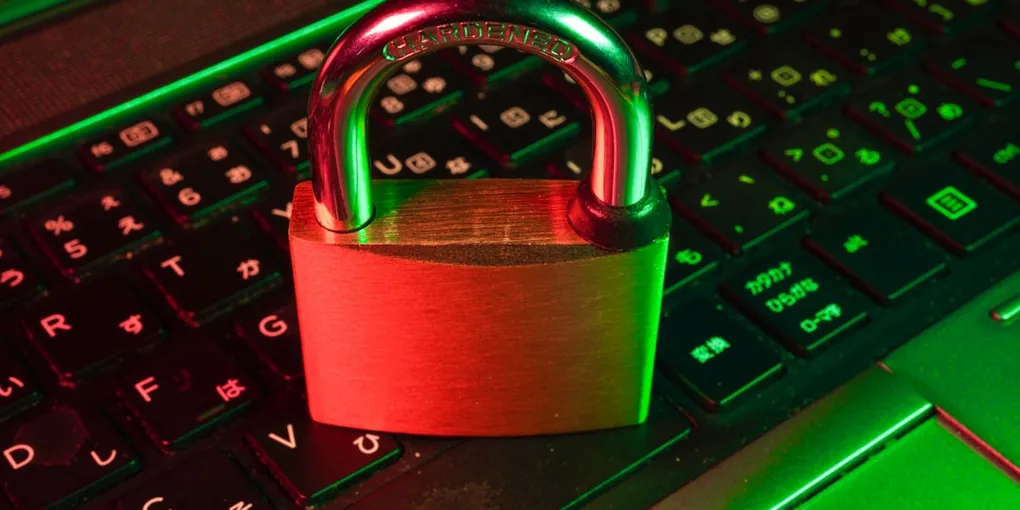
Imagine locking your front door before leaving for work. You turn the key, step away, and feel safe. But what if thousands of identical copies of that key were floating around town, and anyone who found one could walk right into your living room?
That is essentially what happens when you rely on a password alone to protect your email, social media, or bank accounts. Passwords get leaked in data breaches, guessed by smart software, or stolen through tricky emails every single day.
This is where Two-Factor Authentication (2FA) comes in. Think of 2FA as adding a second, completely different lock to your front door—one that requires a key only you possess at that exact second.
What Is Two-Factor Authentication (2FA)?
To understand 2FA, it helps to know how security experts think about proving your identity. Whenever you log in somewhere, you use one or more of these three “authentication factors”:
- Something you know: A password, a PIN, or the answer to a security question.
- Something you have: Your smartphone, a security token, or a physical key.
- Something you are: Your fingerprint, facial scan, or voiceprint.
Traditional security relies on just one factor—usually something you know (your password). Single-factor security means if a hacker figures out your password, they are instantly inside your account.
Two-Factor Authentication simply requires two different factors before letting anyone in. Most commonly, it combines something you know (your password) with something you have (a temporary code sent to your phone or generated by an app).
Even if a cybercriminal across the globe buys your password on the dark web, they still cannot log in because they do not have your physical phone sitting on their desk.
Why Passwords Alone Aren’t Enough Anymore
You might think, “I use long, unique passwords, so I’m safe!” While strong passwords are great, they aren’t foolproof.
Companies get hacked all the time. When a major website suffers a data breach, millions of usernames and passwords end up exposed online. Hackers then use automated tools to try those stolen password combinations across hundreds of popular websites—a trick called credential stuffing. If you ever reuse passwords, one breach on a simple shopping site could give someone access to your primary email.
2FA stops these attacks in their tracks. A hacker might have your correct password, but when the site asks them for the secret 6-digit code generated on your phone, they get blocked.
The 3 Common Types of 2FA
Not all 2FA works the same way. Here is a quick guide to the most common types, ranked from simplest to most secure:
1. SMS Text Messages (Good)
When you sign in, the website texts a 6-digit code to your phone number.
- Pros: Easy to use, works on any mobile phone.
- Cons: Scammers can occasionally trick phone companies into redirecting text messages (known as “SIM swapping”). Still, SMS 2FA is much better than having no 2FA at all!
2. Authenticator Apps (Better)
Free mobile apps like Google Authenticator or Authy generate brand-new 6-digit codes every 30 seconds directly on your device.
- Pros: Highly secure, works even without cellular service, immune to SIM swapping.
- Cons: Takes two minutes to install and pair with your accounts.
3. Physical Security Keys (Best)
Small USB keys (like a YubiKey) that you plug into your computer or tap against your phone to verify your login.
- Pros: Nearly un-hackable and completely immune to phishing websites.
- Cons: Costs a bit of money to buy the hardware key.
How to Set Up 2FA in 5 Minutes
Setting up 2FA is much easier than it sounds. You don’t need to do it for every site all at once. Start with your top three most critical accounts:
- Your primary email account (if someone gets into your email, they can reset passwords for everything else).
- Your primary bank or financial apps.
- Your primary social media or messaging profile.
Quick Setup Guide:
- Download a free app like Authy or Google Authenticator from your phone’s app store.
- Log in to the website you want to secure (like Gmail or your bank).
- Go to Account Settings > Security (sometimes listed under Privacy or Login Settings).
- Look for Two-Factor Authentication, 2-Step Verification, or MFA.
- Select the app option and scan the QR code displayed on your computer screen using your phone’s authenticator app.
- Save your backup codes! The site will give you a list of emergency codes. Print them or save them in a safe place in case you ever lose your phone.
Take Control of Your Digital Security
Cybersecurity can feel complex, but protecting yourself doesn’t require a technical degree. Turning on Two-Factor Authentication is single-handedly the most effective step you can take today to defend your online identity.
Pick one account right now—starting with your primary email—and turn on 2FA. Future-you will be very glad you did!